
How to customize your Ghost homepage without editing your theme.
You don’t need to start editing theme files to make your Ghost homepage your own. Learn how to customize your homepage using design settings, code injection, and dynamic routing.
Many Ghost themes come with pre-defined design options that can be customized from the Settings > Site > Design & branding area within Ghost Admin. However, not all themes offer the specific customization you might be after when it comes to your homepage.
For example, maybe you want your logo to appear a bit larger, or there's too much space before your post list, or not enough. Maybe you want to ditch the standard list of posts entirely, in favor of using more of a traditional landing page for your homepage. Many of these types of changes can be achieved without touching your theme code, and this guide aims to share those options!
In this guide we're going to start with the easiest options for customization, and work our way up to the more complex (don't worry, it's not as scary as it sounds):
- Using your theme's default design settings
- Using Code Injection for CSS changes
- Using a custom page, and custom routing to define a page as the new homepage
- Editing your Ghost theme when/if you actually need to
Which option you decide go with will depend on how much you want to change, and what type of change you're trying to make.
What do you actually want to change?
Before touching any code or changing any settings in Ghost Admin it's important to ask yourself what specifically you want to change? Is it the appearance you want to change, or something are you wanting to change something that already exists structurally on the homepage? The reason why it's to answer the, "what needs to change?" question, is that it dictates what method of customization you should use.
For example, if you want to:
- make your logo larger
- hide a section on the homepage
- change spacing of certain elements
- adjust the colors used
- change the size of the font (or change the font itself), or
- tweak something specific on mobile devices
there's a good chance you won't need to edit your theme files at all.
If you're wanting to:
- add an entirely new section to the homepage
- change which posts Ghost serves on the homepage, or modify their order
- create a custom hero section
- create an entirely different homepage layout
... that's when you start moving into the 'development' territory of theme customization.
For the purpose of this guide, we'll start with the easiest option first, and work our way up.
1 – What does your theme already provide?
Before you add any CSS, or download your theme zip to tackle editing code, take a look at your theme's built-in settings. You can find these in the Settings > Site > Design & branding area of Ghost Admin.
For example, the default Source theme contains several different theme design options:
Source Theme Design Settings
Ghost as a platform does provide standard branding options, such as the ability to upload a publication logo, cover image, set a custom accent color – as well as set a custom font. Some themes, such as Source for example, also have homepage-specific design options that can be configured.
That said, it's important to remember that not all Ghost themes have the same customization options.
One theme might let you change your homepage layout, set custom tag sections of content to be displayed, or alter your post-list design, while others might only have a few basic options.
If you're trying to change something on your homepage you'll definitely want to look at the design settings first, before reinventing the wheel with custom code.
Your Ghost(Pro) plan matters when it comes to modifying themes in Ghost.
As of the time of writing this guide (October 2026), Ghost(Pro)'s Starter plan includes design settings, but it does not include the ability to support custom themes. Custom theme support requires the Publisher plan or higher.
This means that Starter plan customers shouldn't assume that they can download their active theme, modify a
home.hbs file, or upload a custom zip file when reading this guide.This is also why understanding what Design options are available for your theme, and how to use Code Injection is useful, as there are quite a few visual changes you can still make without building a custom theme.
2 – What if my theme doesn't have a setting for that?
Depending on what you're trying to change, this is where Code Injection becomes useful.
Ghost's Code Injection feature lets you add custom CSS and JavaScript, as well as other code to your publication, without having to modify your theme. You can find your Code Injection settings within Ghost Admin, in the Settings > Advanced > Code Injection area.
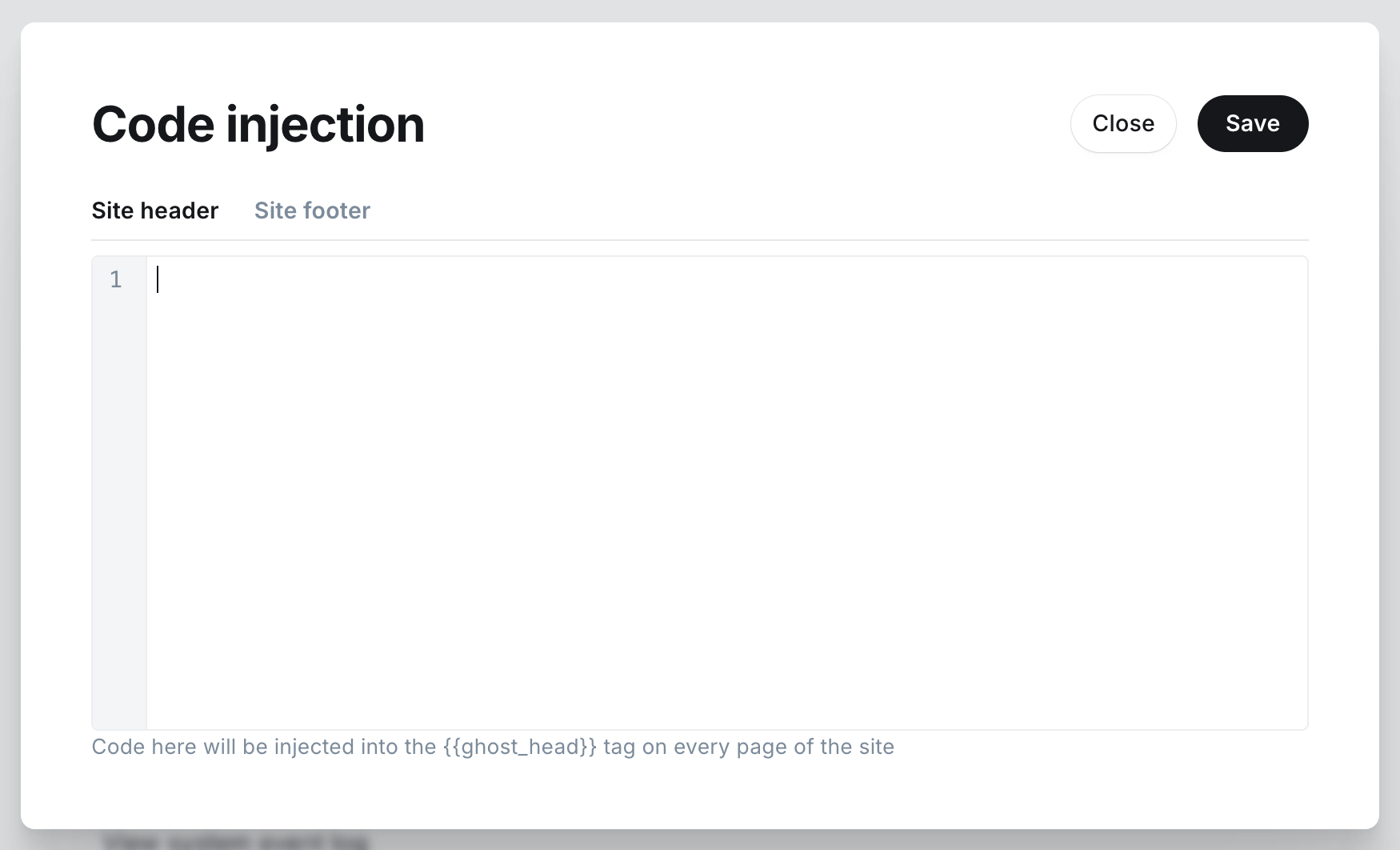
The Code Injection feature includes two separate areas:
- Site Header
- Site Footer
For CSS specific changes, you can add a <style> block to the Site Header.
For example, to make your logo larger (if using Ghost's default Source theme), you can do something like the following:
<style>
.gh-navigation-logo img {
  max-height: 40px;
}
</style>
The 40px; value is the default size. Increasing this value would equally increase the display size of the logo on your site. Once saved, you'll see this reflected in the browser when you visit your site.
The catch: Code Injection is site-wide.
When you add custom CSS to the Site Header, this is applied across your entire publication. This doesn't mean the CSS itself has to affect every page though. Ghost will apply a custom class to the <body> element, depending on what kind of page someone is viewing. For example, on the homepage, the body class is set to home-template. This means that if you just want to increase the size of the logo on the homepage, you can use the following CSS:
<style>
.home-template .gh-navigation-logo img {
   max-height:40px;
}
</style>
Now the change is scoped to just impacting the homepage.
3 – Practical homepage changes you can make with CSS
There are several use cases where using custom CSS injected into the Site Header makes sense. For example, assuming you are using the default Source theme:
Make your logo larger on the homepage
<style>
.home-template .gh-navigation-logo img {
   max-height:50px;
}
</style>
Adjusting the 40px to 50px makes the logo image 10px larger when displayed in the browser. You can increase this value until you land on the size that suits your needs.
Hide something on the homepage
If your theme contains an element that you don't want displayed on the homepage, you can use custom CSS to hide this. For example:
<style>
.home-template .your-custom-element-class {
  display: none;
}
</style>
The .your-custom-element-class will need to be replaced with the element you're actually trying to hide. You can find the CSS class name of an element by right clicking on it from within the browser, and inspecting it using something like Chrome's Web Developer Tools.
Changing spacing
If you have too much empty space between certain sections on your homepage, you can do the following:
<style>
.home-template .your-custom-section-class {
  margin-top: 24px;
}
</style>
You can use the same approach with the margin, padding and gap properties, depending on how your theme was built.
Overriding existing styles
You can also change visual properties that your theme doesn't expose though the default design settings. For example:
<style>
.home-template .your-custom-element-class {
  border-radius: 0; /* removes a round border */
  font-size: 18px; /* sets the font size of the element */
  }
</style>
Making a change only on smaller screens (such as mobile devices)
Ghost's code injection feature is capable of injecting CSS media queries, that will target specific screen sizes, if you want to only make a change for those viewing your homepage on a mobile phone. For example, if you only want to add additional spacing (or remove spacing) tied to a specific element, but only when the individual is viewing the site from their mobile device:
<style>
@media (max-width: 767px) {
  .home-template .your-custom-element-class {
    margin-top: 16px;
  }
}
</style>
This type of adjustment would only impact mobile devices or smaller screens – useful if when your homepage looks great on your computer, but feels cramped or oversized on a mobile device. If you're unfamiliar with media queries, I'd recommend checking out this resource.
Code Injection isn't a page builder
While Code Injection is useful for visual changes, it's easy to get carried away – and things can get messy quick. CSS is great at changing the presentation of HTML that already exists, but it isn't a replacement for your theme.
A good rule of thumb is:
- If the element already exists and you want it to look a different way, try CSS.
- If the element doesn't already exist at all, you're moving towards a structural customization.
You can inject HTML and JavaScript into the site using Code Injection, and make more complex changes from there, but at some point you'll no longer being making a "small" change, and it will turn more into fighting your theme. That would usually be the point where it's worth choosing a different approach.
4 – What if I want an entirely different homepage?
Let's say you don't like the homepage your theme provides, and you want to have something completely different – e.g. have distinct section and elements laid out the way you want.
At this point, you're no longer talking about changing a font or hiding an element with CSS. You're essentially changing what the homepage is.
Ghost does give you a few different ways to achieve this, but here's where we get into deeper waters in terms of complexity, and it becomes more important to really think about what you want to change/do with the homepage.
For example, you can create a page in Ghost Admin, and use Ghost's Dynamic Routing feature to supply that page's content at a different URL–including the root, e.g. the homepage /.
For example, let's say you create a page in Ghost Admin called "Home", and use a combination of dynamic cards and text that you want to serve as the "homepage" for your site. You can use a custom routes.yaml file to achieve this:
routes:
  /:
    template: page
    data: page.home

collections:
  /blog/:
    permalink: /{slug}/
    template: index

taxonomies:
  tag: /tag/{slug}/
  author: /author/{slug}/
In the above example, the "Home" page you created would be served and all of your "posts" would exist at a path of /blog on the site. You can upload a custom routes.yaml file to the Settings > Advanced > Labs area within Ghost Admin, in the "Routes" section.
It's important to note that the page reference in the routes needs to match the slug of your page. For example, if your page is published with a slug of home the data value becomes page.home. If the slug is something-else the value becomes page.something-else.
In the above scenario, Ghost Admin would be managing the content of the homepage, and the theme you are using determines how that content is rendered.
5 – When should I edit my theme files?
When you need to control the structure of your theme's homepage, this generally requires editing your theme files directly.
Ghost supports a special template known as the home.hbs file. When this file is detected within a theme, Ghost will use it on the homepage view only. When it is not present, the fallback would be your theme's index.hbs file.
Using a custom home.hbs file, you have full control over the homepage markup, and can leave the rest of theme untouched. You can also use Ghost's template contexts and helpers to conditionally hide/show content if needed. For example, Ghost provides a home context, that lets theme developers determine whether a visitors is on the homepage or not.
At this level, you can do things like:
- build a completely custom homepage, with new sections
- query specific post by the tag associated with them
- create a custom post grid layout
- build custom calls to action for your visitors
- rearrange content on the homepage
- create layouts that aren't possible with CSS changes alone
If this answers the "what do I want to change" question, Ghost already has a great tutorial on how to setup a homepage using a home.hbs here that you can checkout.
Which method should I use to modify my homepage?
Just to clarify what we've covered here, and which method you should use based on what you want to achieve:
| I want to… | Start with |
|---|---|
| Change colors, fonts, logos, or options my theme already supports | Design settings |
| Hide something or make a small visual change | Code Injection |
| Change homepage spacing, sizing, or styling | Code Injection |
| Make a CSS change only on the homepage | Code Injection + .home-template |
| Manage homepage content entirely through Ghost Admin | Page + routing |
| Add new sections or rearrange the actual layout | Theme editing |
| Build a completely custom homepage | home.hbs / theme development |
Ideally, the easiest solution is usually the best one. I'd recommend starting with your theme's default design options, in the Settings > Site > Design & branding area. If your theme doesn't give you the options you need to configure, see whether injected CSS using Code Injection in Ghost Admin can solve it.
If you're trying to turn the homepage into something more customized, that's when you can start looking into creating a custom page, routing, and potentially theme development. That said, there's no need to dive deep into editing your theme just because you want your theme to feel like it's yours.